Sequence's Chroma Key module makes a solid-color background — a green or blue screen — transparent, so whatever is layered behind the clip shows through. It keys on one color at a time and lives in the Color tab of the inspector.
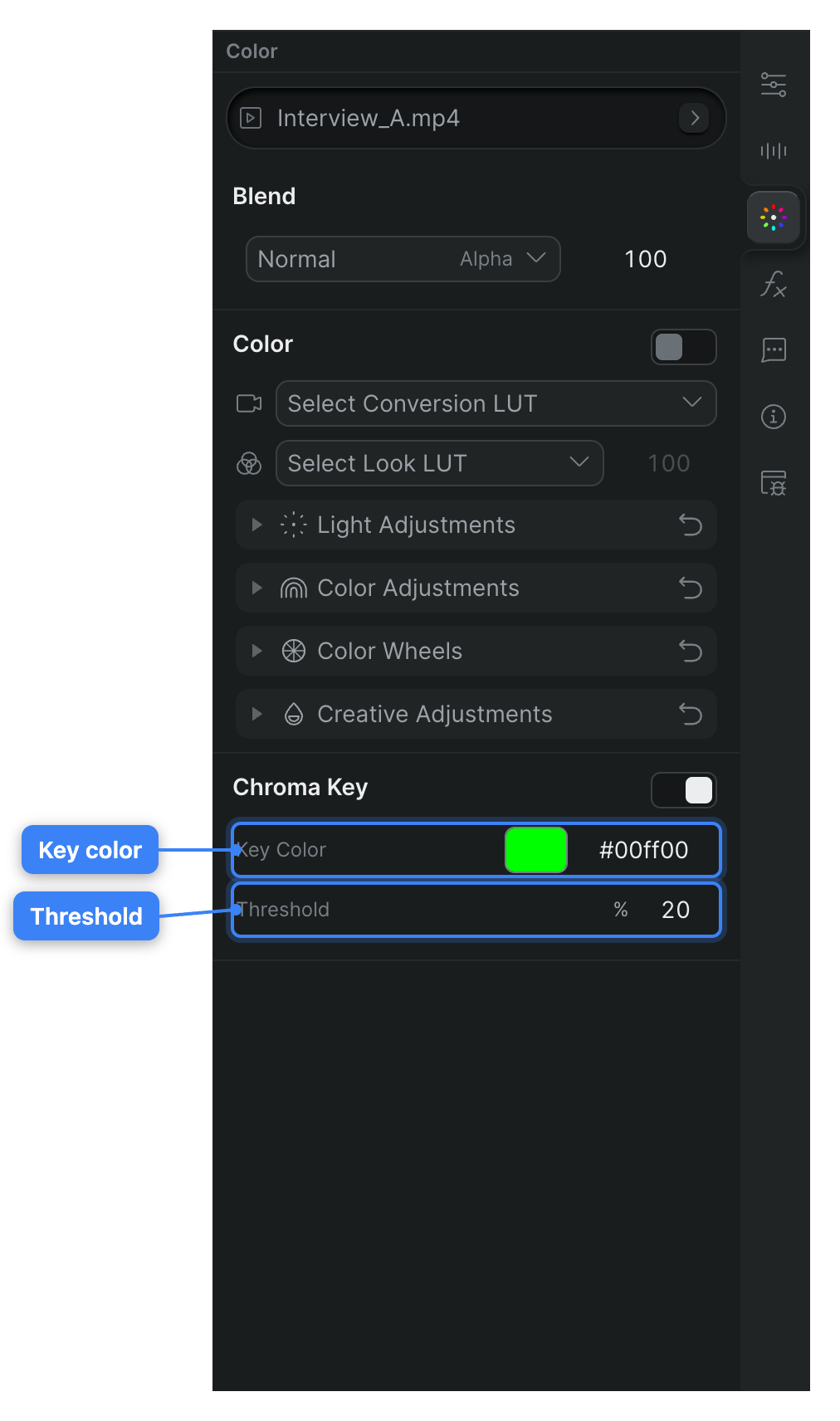
Chroma Key only appears for a clip that has a video stream. If the Color tab reads No video stream found, the selected clip is audio-only and can't be keyed.
Note
Keying is a project change. Sequence saves it with the clip and it's visible to everyone with access to the project.
Turn on Chroma Key#
- In Sequence, open the project and select a clip in the timeline.
- In the inspector, click the Color tab.
- Scroll to the Chroma Key module and click its switch (Toggle chroma key on/off) in the module header.
Sequence adds the key and drops the clip's green background out of the frame — green is the default key color. The Key Color and Threshold controls appear below the switch. To compare the keyed and un-keyed clip, click the switch off and on again; it keeps your settings.
Pick the key color#
The default key color is green, so a green screen keys out as soon as you turn the module on. Change the key color for a blue screen, or to match a different background shade.
- In the Chroma Key module, find the Key Color control.
- Click the color swatch to open the color picker.
- Choose a color from the palette, or type a hex value in the input.
Sequence re-keys the clip against the new color as you change it.
Tune the Threshold#
The Threshold sets how close a pixel's color must be to the key color to be made transparent. It runs from 0 to 100 and defaults to 20.
- In the Chroma Key module, click the Threshold field.
- Type a value, or drag left and right across the field to scrub it.
Raise the Threshold to key out more of the background when patches of it remain; lower it if the edges of your subject start turning transparent. Adjust in small steps and watch the preview until the background is gone but your subject's edges stay clean.
What Chroma Key doesn't do
Chroma Key is a single-color threshold keyer. It has no masks or garbage mattes to limit the key to part of the frame, and no dedicated spill-suppression or light-wrap controls. Light an even screen and pick an accurate Key Color to get the cleanest result.
Animate the key over time#
The Key Color channels and the Threshold are both keyframeable, so you can change the key as the shot changes — for example, easing the threshold up as your subject moves across an unevenly lit screen. In the keyframe panel the effect appears as a Key group with Key Red, Key Green, Key Blue, and Threshold rows. For how to set and edit keyframes, see Animate a property with keyframes.