Video scopes are graphs that measure the color and brightness of the current frame, so you can grade by the numbers instead of by eye. A scope (a live measurement graph) updates from whatever frame the player is showing, so scrub the playhead (the current-time indicator) to read any point in your sequence. See Preview & playback.
While the player is still loading, the panel shows a spinner; until it has a frame to analyze it reads Waiting for video. If the scopes can't start, it reads Couldn't load scopes.
Scope Controls#
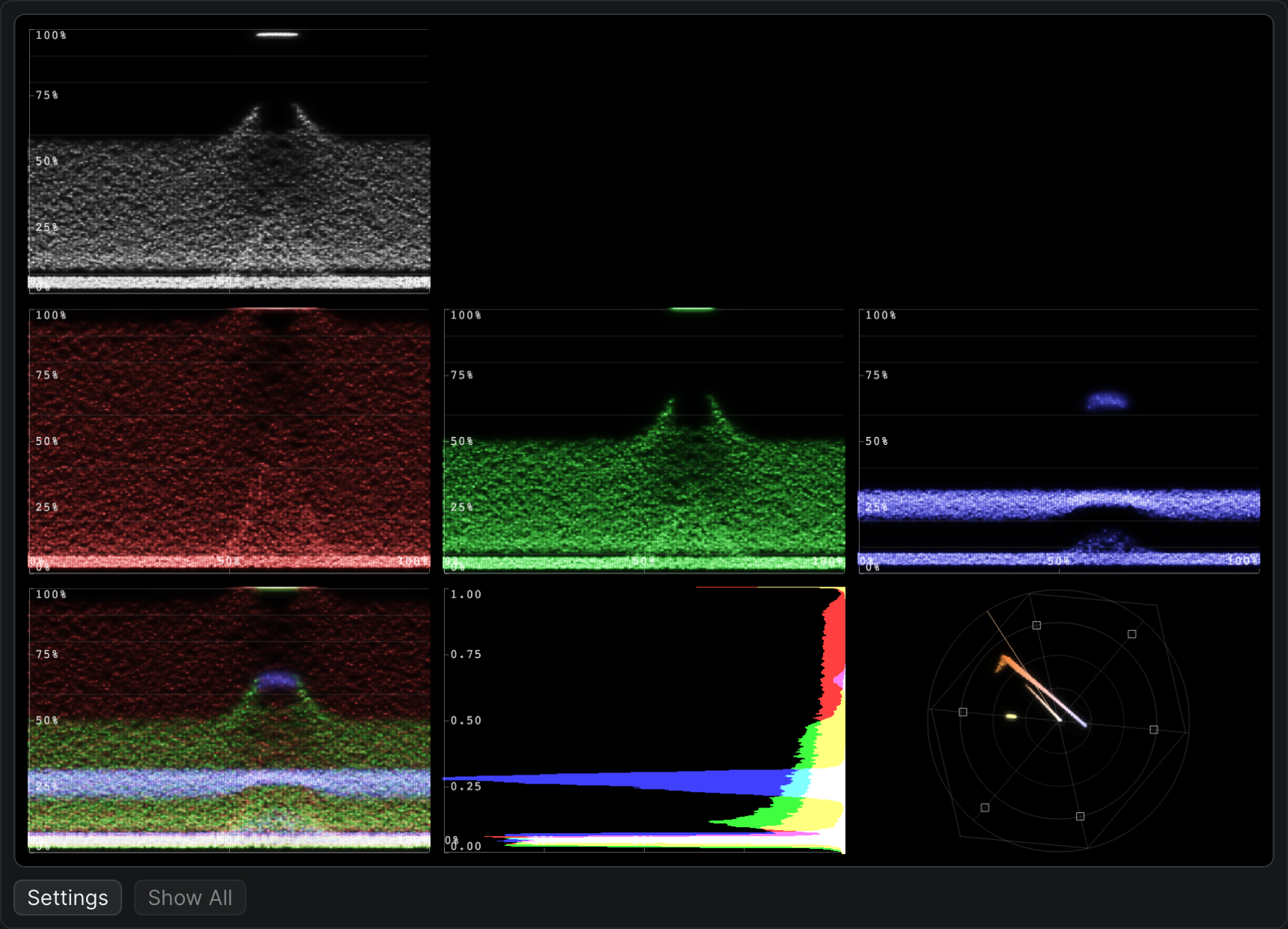
The scope graphs fill the panel. Along the bottom are two buttons:
- Settings: Opens the settings popover, where you choose which scopes are visible and set the units and overlays for each. The rest of this page describes those controls.
- Show All: Turns every scope back on at once. It's disabled when all scopes are already showing.
Choose which scopes are visible#
In the Settings popover, the first column is Visible Scopes. Select a scope's checkbox to show it, or clear it to hide it. Scopes are grouped into RGB channels and analysis tools.
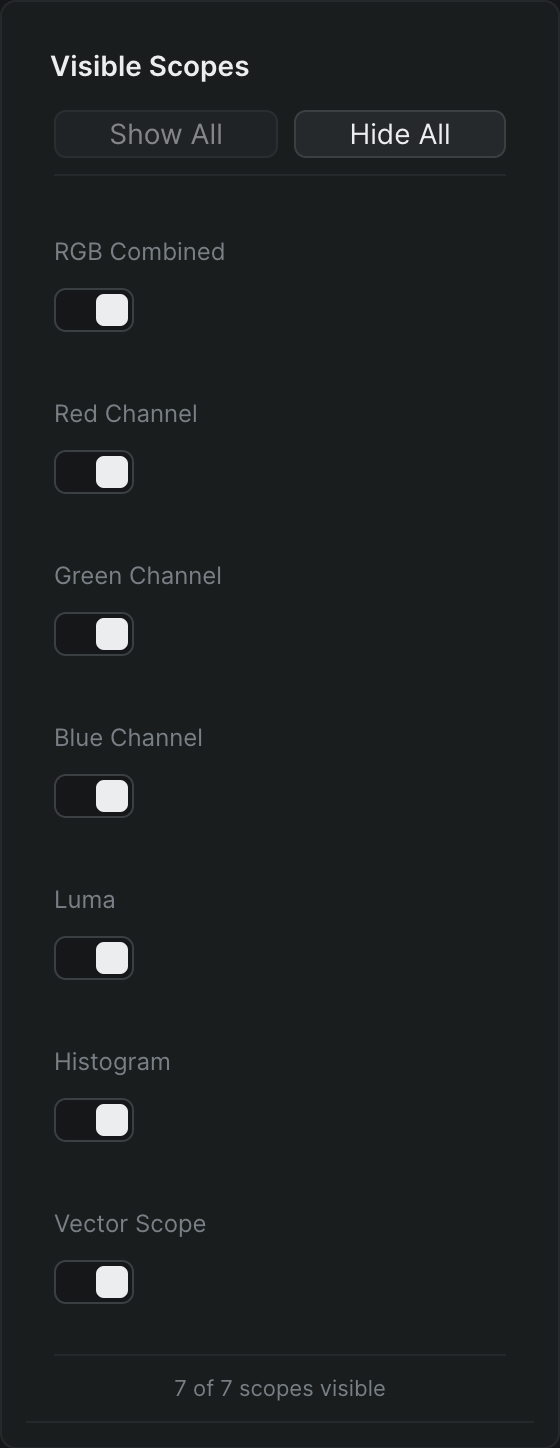
RGB Channels — a waveform plot of signal level, from shadows at the bottom to highlights at the top:
- RGB Combined: All three color channels overlaid in one waveform. Use it to judge overall exposure and spot clipping.
- Red Channel: The red channel's waveform on its own. Use it to isolate a color cast or balance one channel.
- Green Channel: The green channel's waveform on its own.
- Blue Channel: The blue channel's waveform on its own.
Analysis:
- Luma: A waveform of brightness only, ignoring color. Use it to set black and white points and check contrast.
- Histogram: The distribution of pixels across the tonal range, from shadows on the left to highlights on the right. Use it to see where an image is weighted and whether it's crushing or clipping.
- Vector Scope: A circular plot of hue (angle) and saturation (distance from center). Use it to check color balance and how far your saturation pushes.
Toggle scopes with the keyboard#
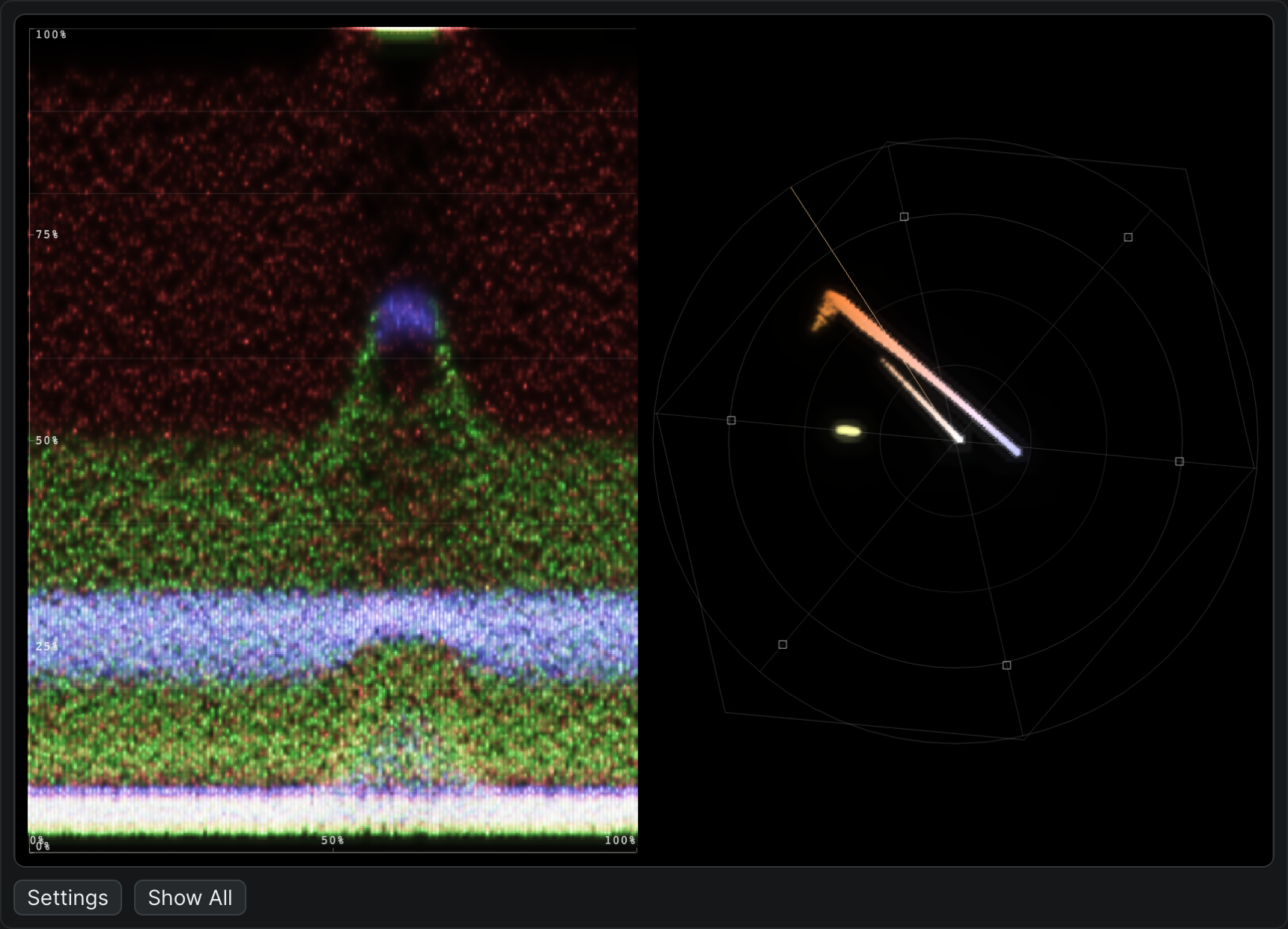
Each scope has a shortcut, so you can bring one up and put it away without opening the Settings popover. The shortcuts are the same on macOS and Windows.
| Toggle | Shortcut |
|---|---|
| Red channel scope | Shift-1 |
| Green channel scope | Shift-2 |
| Blue channel scope | Shift-3 |
| Luma scope | Shift-4 |
| RGB combined scope | Shift-5 |
| Histogram | Shift-6 |
| Vector scope | Shift-7 |
| Show all scopes | Shift-8 |
| Hide all scopes | Shift-9 |
Set up the waveform display#
The second column, Waveform Display, sets how the RGB and Luma waveforms are drawn.
- Units: Choose the scale for the vertical axis. % reads level as a percentage, IRE uses the broadcast IRE scale, and 0-1 uses normalized values. Pick the scale your grade or delivery spec is written in.
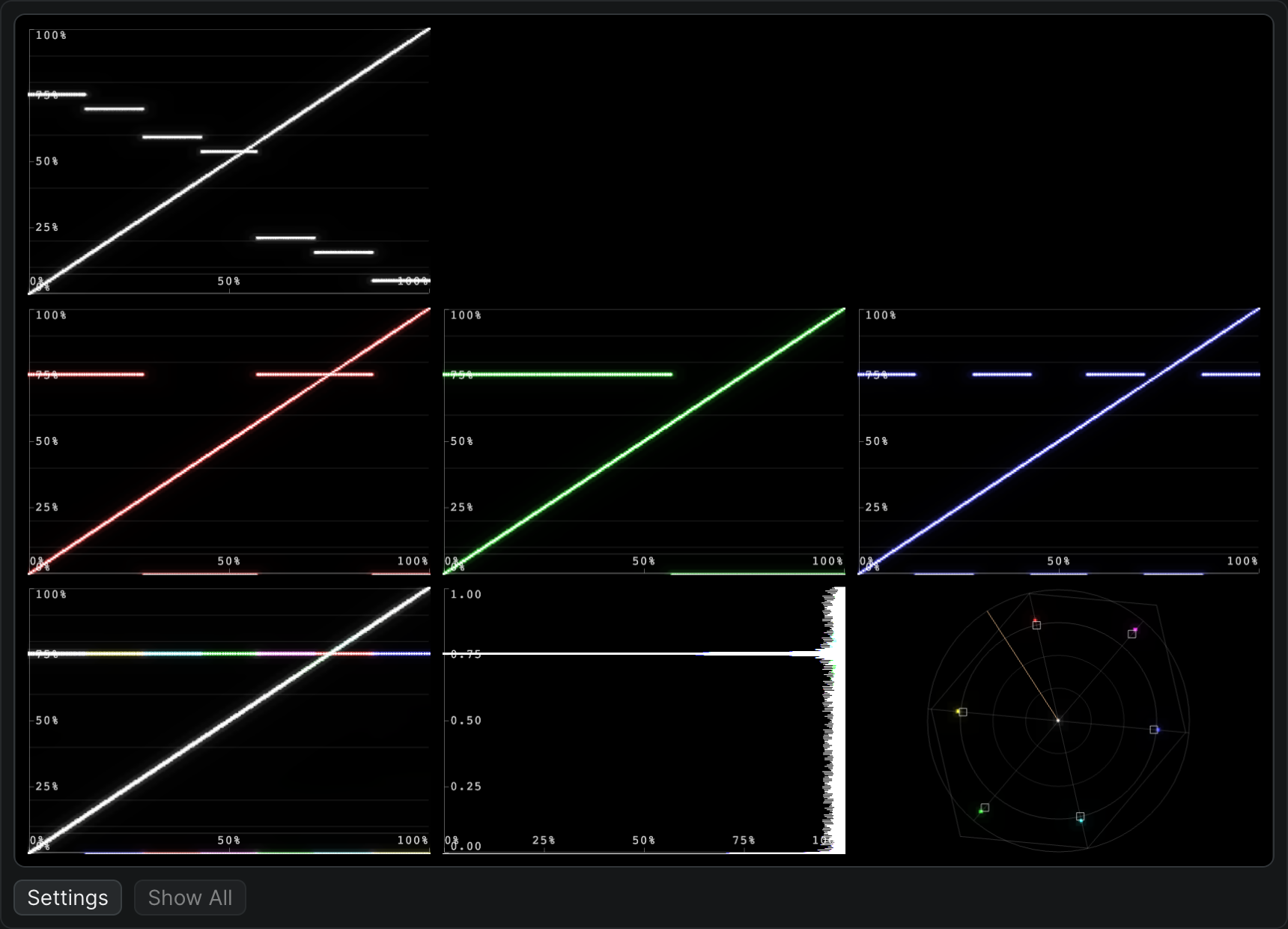
- Overlays > Axes: Draws the labeled axis so you can read exact values off the graph.
- Overlays > Graticule (IRE lines): Draws the graticule — the reference grid of horizontal IRE lines across the waveform — so you can line levels up against fixed marks. On by default.
Set up the vector scope display#
The third column, Vector Scope Display, sets how the vector scope is drawn.
- Units: Choose the scale for the vector scope: %, IRE, or 0-1.
- Overlays > Color Targets: Shows the target boxes for the primary and secondary colors, so you can check whether color bars land where they should.
- Overlays > Graticule Lines: Draws the vector scope's reference grid.
- Overlays > Skin Tone Line (123°): Draws the skin-tone reference line. Natural skin tones fall along this line regardless of race, so use it to judge whether faces read correctly.
- Overlays > Saturation Circles: Draws the concentric saturation rings, so you can gauge how saturated the frame is.
Note
Scopes read the current frame in the player, not the clip's original media. To measure a graded look, scrub to the frame you want and read it live.