Select a video clip and open the inspector's Color tab. Curves and Color Warper let you adjust a range of tones or colors instead of changing the whole image uniformly. Use the video scopes and preview to check the result.
RGB Curves#
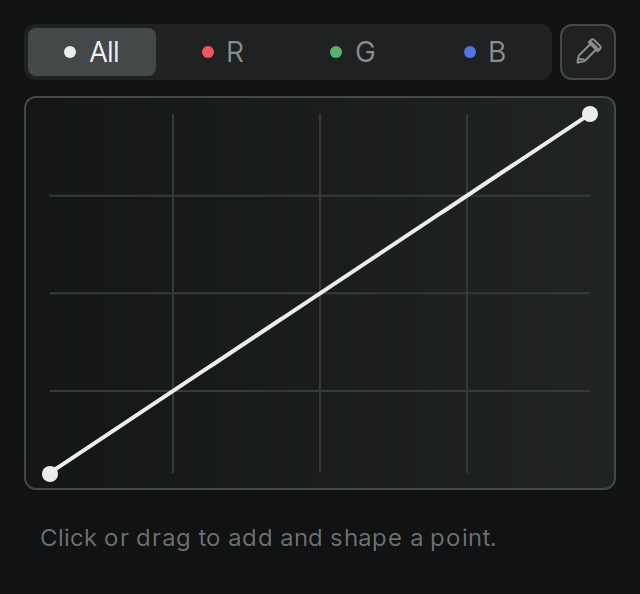
Open RGB Curves and choose All, R, G, or B. Click the graph to add a point, then drag it or enter its In and Out values. The horizontal axis is the input and the vertical axis is the output. Move a point above the diagonal to raise that range, or below it to lower the range. Individual channels change color as well as brightness. Use the eyedropper to place a point at a sampled color, and delete an interior point with Delete, Backspace, its delete button, or a double-click.
Hue/Saturation Curves#
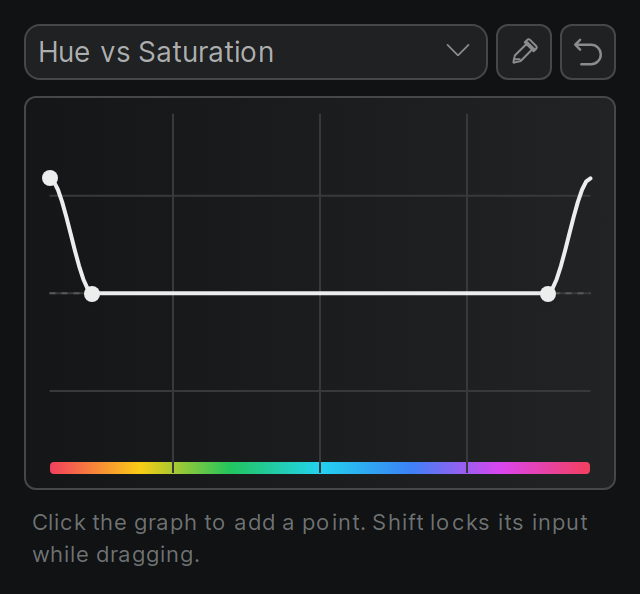
Choose a curve in Hue/Saturation Curves: Hue vs Saturation, Hue vs Hue, Hue vs Luma, Luma vs Saturation, or Saturation vs Saturation. The first part names the input range; the second names what changes. Add and drag points to shape the adjustment, or use the eyedropper to select a color from the displayed image. Reset an individual curve or all curves with the reset controls. The eyedropper samples the displayed image, including its existing grade.
Color and Chroma Warper#
Choose a mode in the warper controls:
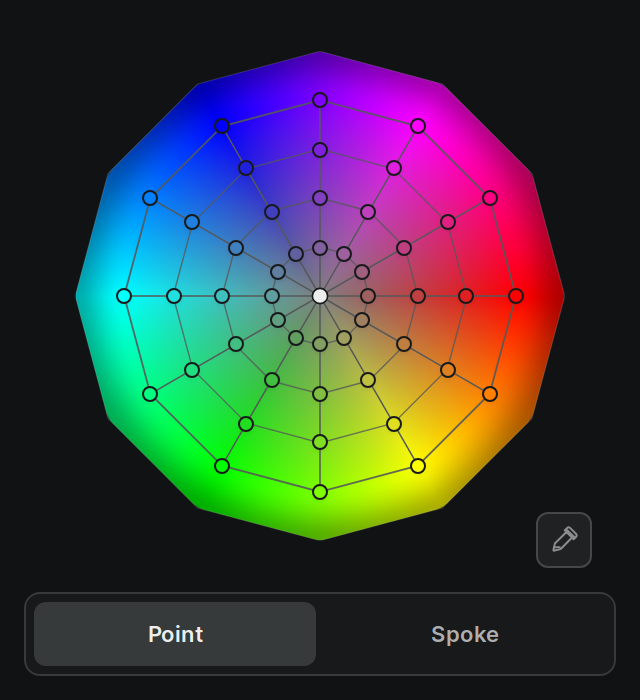
- Color Warper adjusts a hue/saturation web. Choose Point to move a point or Spoke to move its hue column, then drag on the web. The eyedropper selects the nearest point to a sampled color.
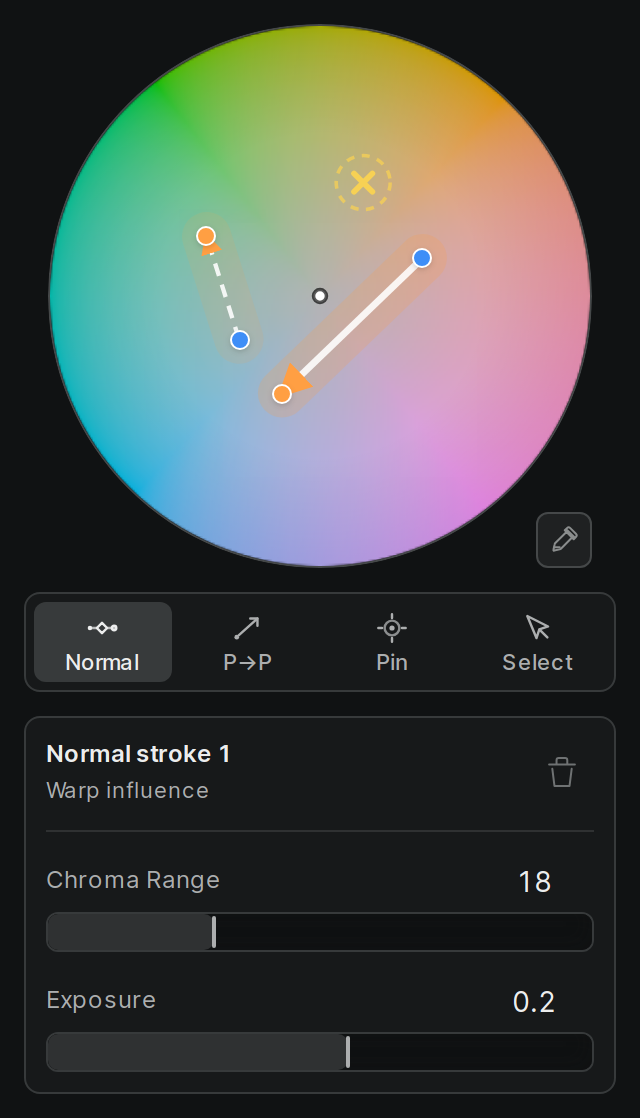
- Chroma Warper uses strokes to move colors and pins to protect them. Choose Normal or P→P to draw a stroke, Pin to protect a color, or Select to edit a stroke or pin. Adjust the selected control's chroma range; strokes also have an exposure control. The eyedropper creates a point-to-point stroke at the sampled color; move its destination to make a change.
Both modes retain their settings when you switch, but only the selected mode affects the image at a time.
Primaries matrix#
The color effect's matrix mixes red, green, and blue inputs into each output channel. Use its coefficients or a preset for channel swaps and conversions between Rec.709, Rec.2020, and P3-D65 primaries. Coefficients can be keyframed. Preserve Luminance helps keep brightness consistent while editing; loading a preset turns it off. These presets change the matrix coefficients rather than setting up a complete color-managed workflow, so check the result and delivery requirements.