Sequence can turn a clip's spoken audio into a searchable transcript. Once the transcript is ready, you can read it alongside playback, jump to any moment by clicking a line, and search the text. As it transcribes, Sequence also detects the speakers and characters in the clip.
Transcription runs in the background. You don't wait on it — Sequence processes the audio in a queued job and fills in the transcript when it finishes. See Background jobs.
Open the transcript#
- In Sequence, open the project and select a clip that contains audio.
- In the inspector, open the transcription panel.
- Click the Transcript tab.
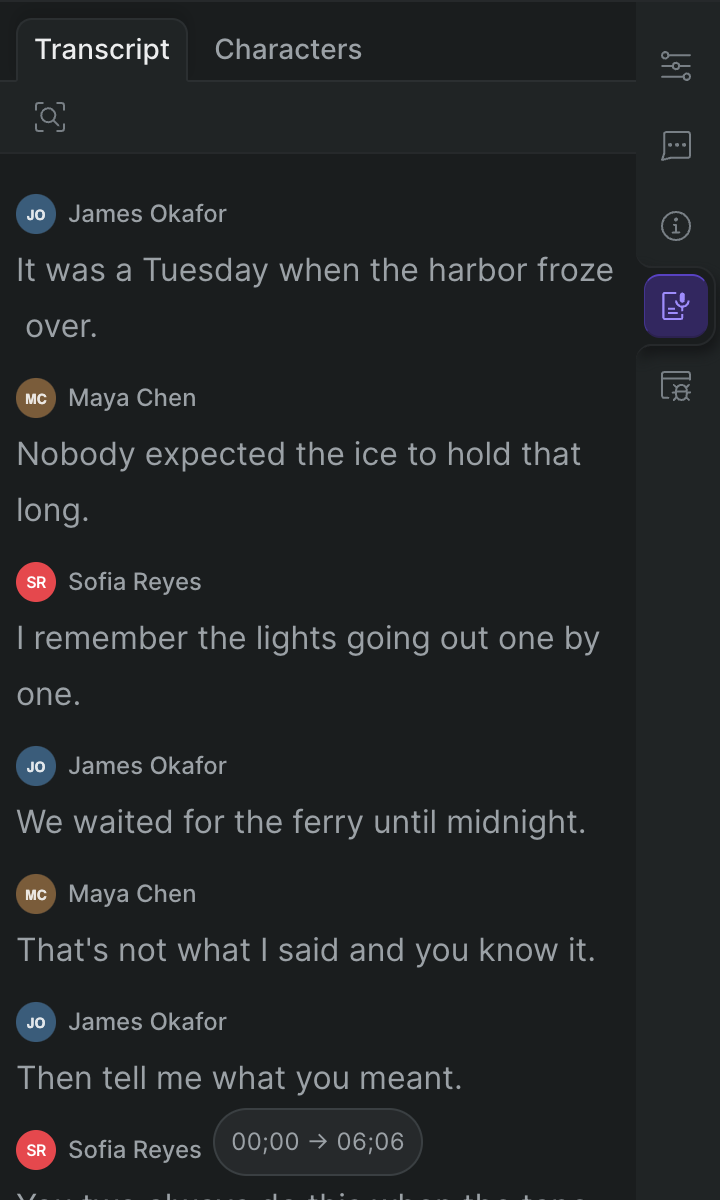
What you see depends on whether the transcript is ready:
- A transcript is ready — the text appears, broken into timed lines.
- A job is running — a progress row shows the transcription job working through the audio. The transcript fades in when the job completes.
- The job hasn't started yet — the panel shows Waiting for transcription job to start.
- No speech was found — the panel shows No transcript, with the hint that Sequence didn't find any speech to transcribe in this media.
Note
Transcription happens in the background and is visible to your collaborators — once a clip is transcribed, anyone with access to the project sees the same transcript.
Follow along with playback#
Click any line in the transcript to move the playhead (the current-time indicator) to that point in the clip. Use this to jump straight to a spoken moment instead of scrubbing for it.
For more on moving through a clip, see Preview and playback.
Search the transcript#
- In the Transcript tab, click the find button (the magnifying-glass icon) at the top of the panel (or press Cmd-Shift-F — Windows: Ctrl-Shift-F).
- Type your text in the Find in transcript... field. Sequence shows the number of the current match and the total, such as 1 / 4.
- Move between matches. Do any of the following:
- Click Next match (the down arrow), or press Enter.
- Click Previous match (the up arrow), or press Shift-Enter.
- To close the search, click the exit button, or press Esc.
If your text isn't found, the panel shows No matches.
Review the speakers#
Sequence detects the speakers and faces in a clip as it transcribes. To review them, open the Characters tab next to the transcript — see Speakers and characters.