Sequence plays library items and timelines in the same preview monitor. You can skim a clip with the pointer to glance through it, scrub to a frame, or start playback with the transport controls below the player. The keyboard covers everything the buttons do, so you can keep both hands on the keys while you review.
Skimming means moving the pointer across a clip to preview frames under the cursor without moving the playhead — the moment you stop, playback resumes from where the playhead sits.
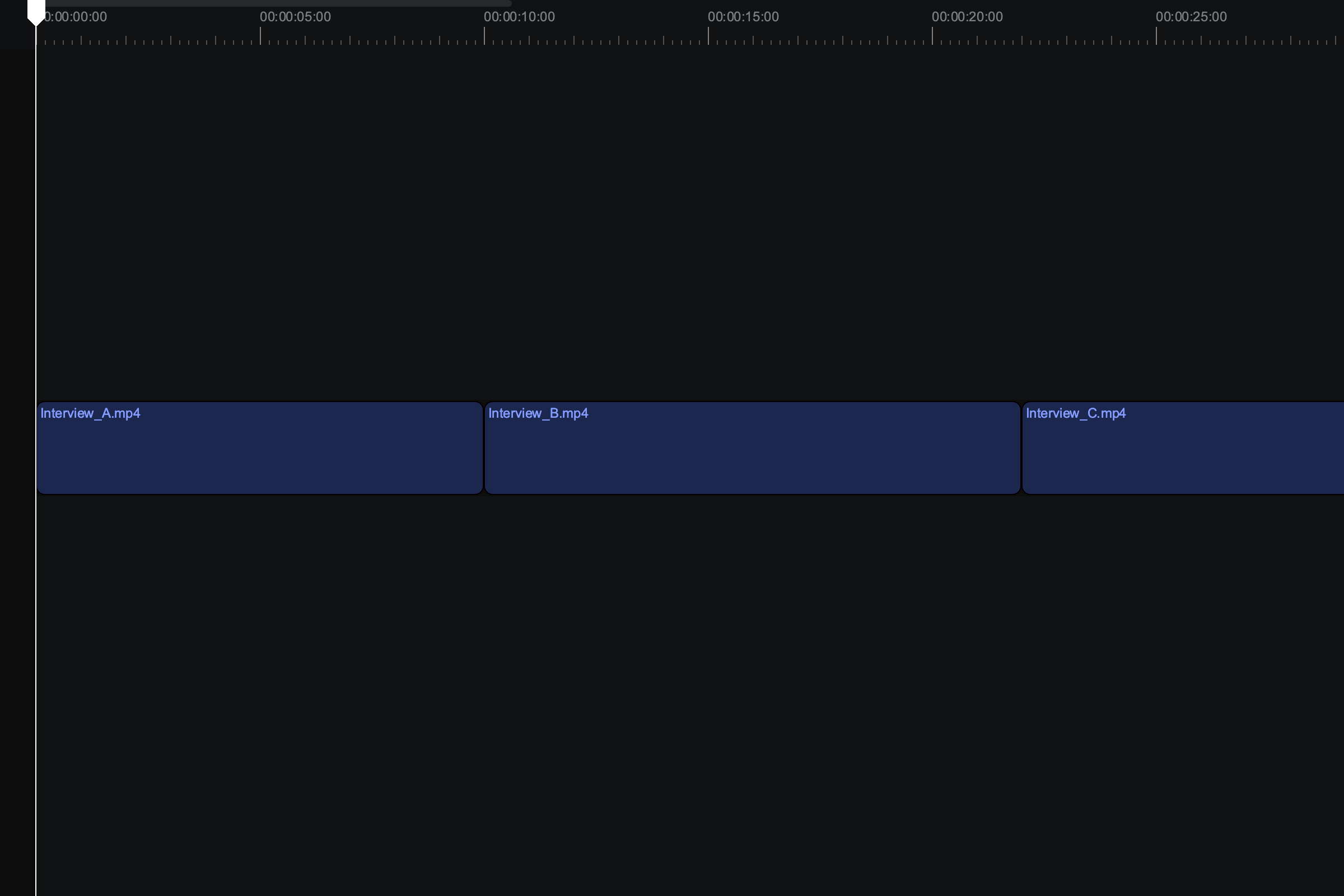
Preview a library item#
- In Sequence, open the project and select a file in the library. The clip loads into the preview monitor.
- Move the pointer across the filmstrip beneath the player to skim through the clip.
- Click anywhere on the filmstrip to move the playhead to that frame.
- Press Space to start and stop playback (or use the play/pause button in the transport controls).
The frame under the playhead shows in the preview monitor. To glance at a clip before you select it, hover over its thumbnail in the library and move the pointer across it — Sequence skims through the frames in a preview above the thumbnail as you go.
Preview a timeline#
- In Sequence, open a timeline from the timeline picker, or click the background of an open timeline.
- Wait for the timeline to finish loading. The first time you open a timeline in a session, Sequence loads its clips into the project system and shows a progress bar above the timeline while it works.
- Move the pointer across the timeline to skim it, or click the timeline background to move the playhead to that frame.
- Press Space to start and stop playback.
Note
During playback the editing tools are disabled and the transport controls dim, so changes can't interrupt the stream. Pause playback to keep editing.
The source bar above the preview monitor shows the loaded timeline's ancestor chain as a breadcrumb — click a segment to reveal that timeline in the Storytree. See Jump to the active timeline from the preview.
Play, pause, and step through frames#
The transport controls sit below the preview monitor. Every button has a keyboard equivalent that works the same on macOS and Windows:
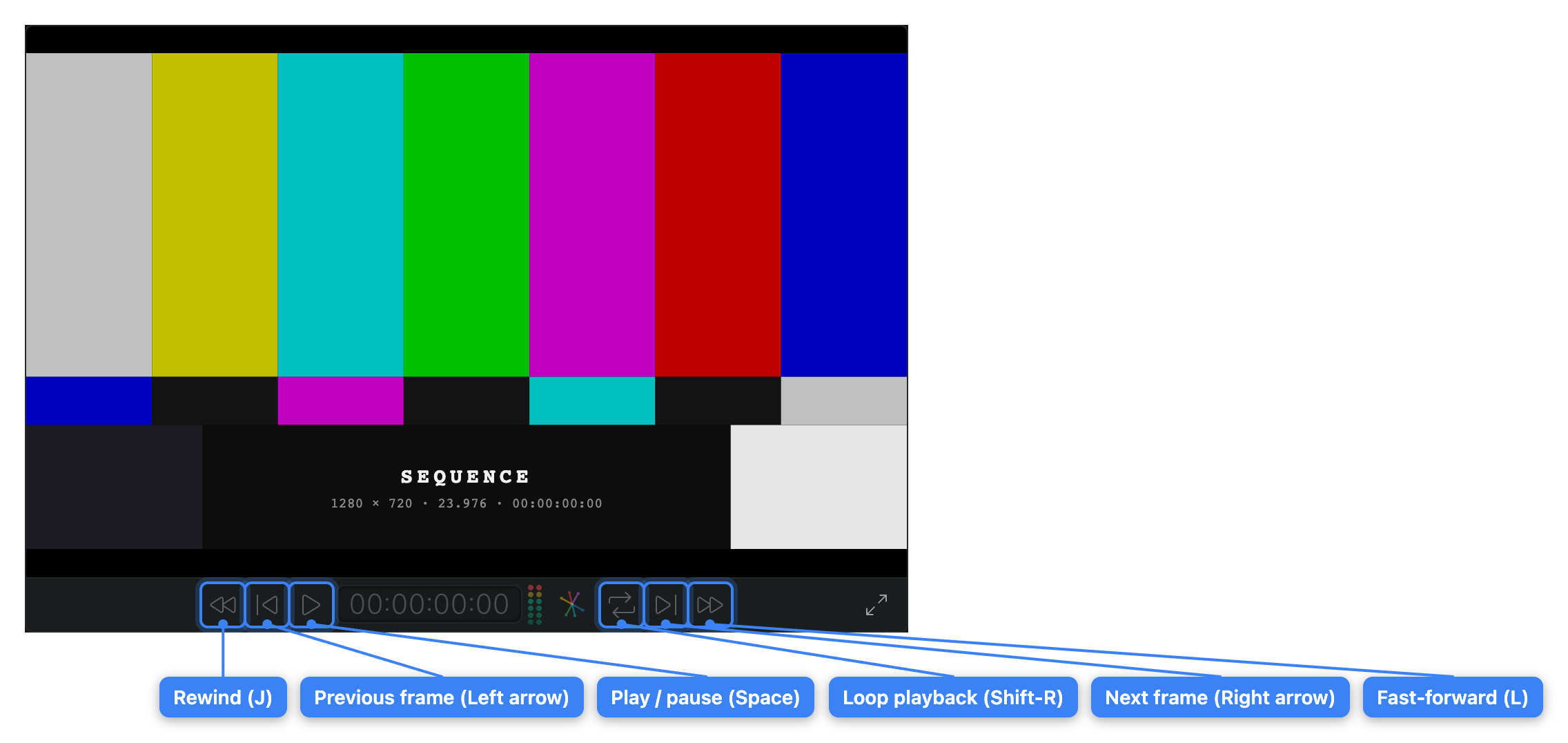
- Play/Pause — Click the play/pause button, or press Space or K.
- Previous frame / Next frame — Click the step buttons, or press Left or Right. Hold Shift while stepping to jump 10 frames at a time.
- Previous edit / Next edit — Press Up or Down to move the playhead to the previous or next edit point in the timeline.
Shuttle with J, K, and L#
Sequence supports the standard J-K-L shuttle controls for scanning footage at speed, in either direction:
- Press L to play forward. Press it again to speed up through 2×, 4×, and 6×.
- Press J to play in reverse, speeding up the same way.
- Press K to stop. Pressing the opposite direction key drops back to 1× in the new direction.
- Hold K and tap J or L to step one frame at a time while staying stopped.
- Hold Option and press J or L for half-speed reverse or forward (Windows: hold Alt).
Loop playback#
By default, playback stops at the end of a library clip or timeline. To repeat the clip or timeline continuously instead, click the Loop Playback button in the transport controls (or press Shift-R). Playback loops until you pause it or turn the button off.
Set a range to add a clip#
A range lets you mark only the portion of a library clip you want, then drag that portion into the timeline — the classic "3-point editing" technique that saves trimming the clip down later. The in point marks where the selection starts; the out point marks where it ends.
- In Sequence, select a library item to preview it. The whole clip is selected as the range by default.
- Move the playhead to where you want the selection to begin, then press I to set the in point. You can also drag the trim handles on the range directly.
- Move the playhead to where you want the selection to end, then press O to set the out point.
- Drag the range into the timeline to add only the selected portion.
To reset the range back to the whole clip, press X.
Tip
To check exposure, levels, and color while you review, open the video scopes from the preview monitor. See Video scopes.