The library holds every clip, image, and audio file in your project — and every document. A document is any non-media file: where a clip is footage Sequence plays, a document is a file it stores and hands off, such as a script, a spreadsheet, a subtitle file, or a color LUT. Scripts are the most common kind, but they're only one case.
Sequence recognizes documents by their file extension and takes in a wide range of them:
- Scripts and text — PDF, Word (.doc, .docx), plain text (.txt), Markdown (.md), rich text (.rtf), and Final Draft (.fdx)
- Spreadsheets and slides — CSV, Excel (.xls, .xlsx), and PowerPoint (.ppt, .pptx)
- Subtitles — SRT, VTT, and ASS
- Edit interchange — EDL and FCPXML
- Color — LUTs (.cube)
- Data and config — JSON, XML, YAML, TOML, and similar formats
How documents get into the library#
A document reaches your library one of two ways:
- You upload it, like any other file. Sequence classifies it as a document by its extension and skips the clip processing it runs on footage, so the file is ready as soon as it finishes transferring. An uploaded document lands in the Inbox until you move it into a folder. See Add media to your project.
- Snippy writes it for you as part of a task — for example a shot list or a set of notes. A document Snippy authors appears in the library and syncs to everyone on the project. See Run tasks with Snippy.
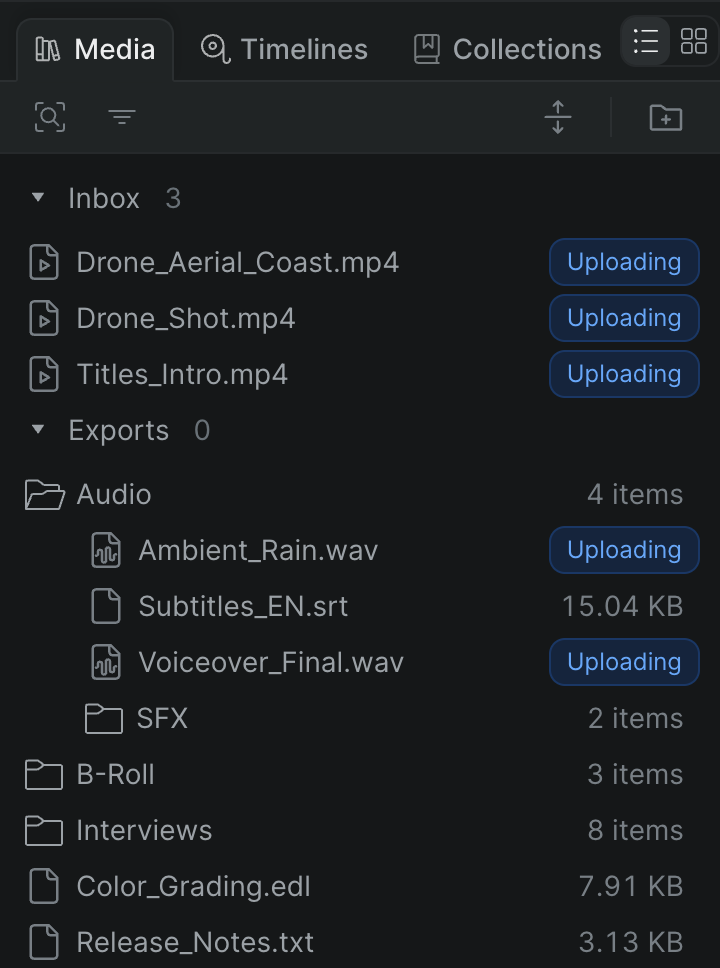
While a document is still transferring, its row shows a status chip in place of the file size. Once it's ready, Sequence shows the file size and the document is usable.
Where documents appear#
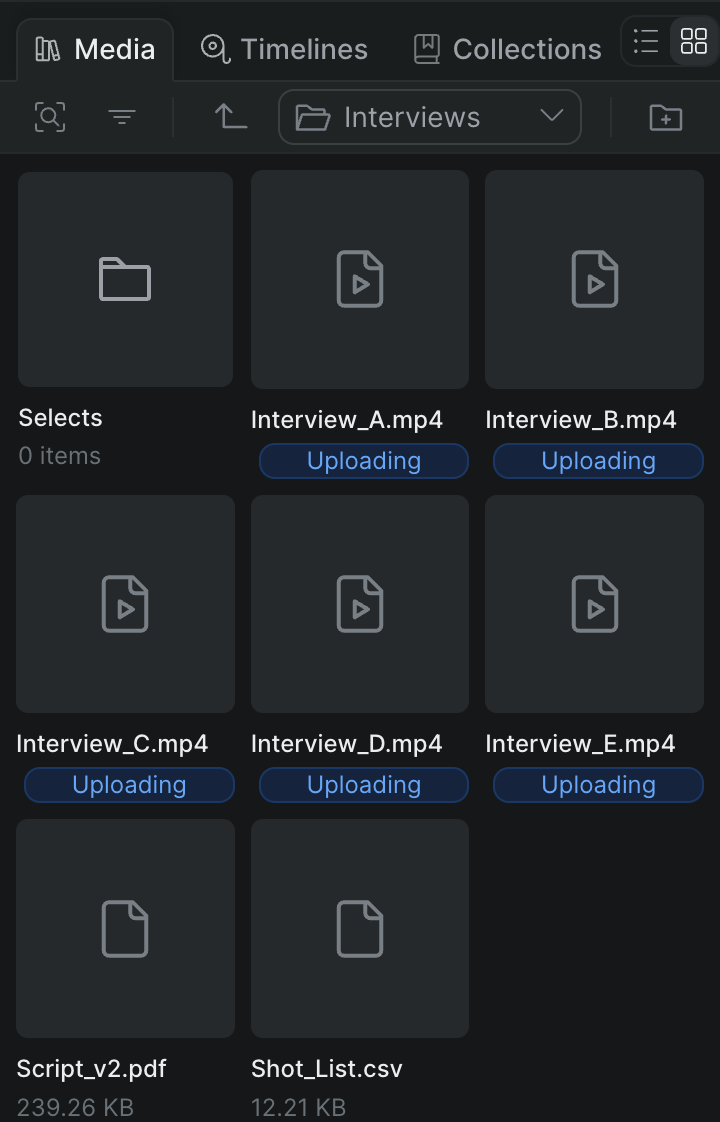
Documents sit inline with your clips in the library — at the project root or inside any folder — and appear in both List view and Grid view, sorted alphabetically alongside everything else. In list view, a document shows a document-type icon, its name, and its file size; in grid view, it appears as a card with its name and size. For how the two views and folders work, see Organize files in the library.
Work with a document#
You handle a document much the way you handle a clip:
- Rename it. Double-click its name — or select it and press F2 — then type a new name and press Return (Windows: Enter). Sequence keeps the original file extension, so you can change the name but not the extension. Press Escape to cancel.
- Move it. Drag it onto a folder, in either view.
- Open it. Right-click the document and choose Open in Shuttle to open it in the Shuttle desktop app. This is the only way to open a document's contents — Sequence doesn't preview or edit documents in the browser — and it needs the Shuttle desktop app installed to handle the link.
- Delete it. Right-click the document and choose Delete. Sequence asks you to confirm before removing it.
Scripts#
A script is a document Sequence has analyzed into a breakdown — its acts, scenes, and beats — that Snippy can read when it works with the file. The breakdown is data Snippy uses behind the scenes; there's no separate script view to open in Sequence. Deleting a script document also removes its breakdown.
Documents and collaborators#
Documents are part of the shared project library, so everything you or Snippy add is visible to everyone with access. In list view, when another collaborator is working on a document, its row shows a lock chip with a Locked by tooltip that names who holds it. The lock chip appears in list view only.
Note
Some file types can't become documents. If you try to upload an unsupported file — for example an After Effects (.aep) or Premiere (.prproj) project, an SVG, a HEIC image, or a disk image (.dmg) — Sequence turns it away with an Unsupported file message instead of adding it to the library.