The Info tab collects everything Sequence knows about the item you've selected — its description and links, its selects, the screenings it appears in, the people attached to it, and its technical metadata. To open it, select a library item (or a clip cut from one) and click Info in the row of tabs across the top of the inspector.
The Info tab is one of several inspector tabs, and which tabs you see depends on what you've selected. The reference below describes what appears when you select a library item or a clip that came from one. Select the timeline itself and the Info tab shows the timeline's output and export details instead — see Inspector Panel.
The modules appear top to bottom in the order below. A module only appears when the selection has something to show for it.
Description#
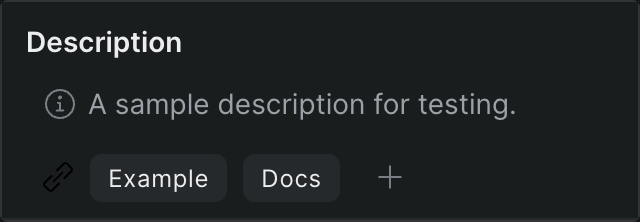
The Description module holds a free-text description and a set of reference links for the selected item.
- Description — A free-text field for notes about the item. Type to edit it; your text saves when you click away. When you don't have permission to edit, the field is read-only and reads No description provided when empty.
- Links — A row of link chips for related URLs — a brief, a spec, a shared drive. Click the + button to add a link, click a chip to edit it, and remove a chip from its own controls. The + button and editing appear only when you have edit access.
Selects#
The Selects module lists the selects (marked in/out ranges, or subclips) saved on the item, and lets you make new ones.
- Select list — Each select shows its name, the asset it belongs to, and any tags or reactions on it. Click a select to load its range and jump the playhead to its in point. Double-click a select's name to rename it.
- New Select — Click New Select at the bottom of the list to create a select from the current in/out range.
For how selects, tags, and labels work together, see Tagging and labeling.
Screenings#
The Screenings module lists the screenings this item appears in and lets you start a new one. A screening is how you send an item out for review or download.
- Screening list — Each row shows the screening's name, its review status, and its comment count. Click a row to open that screening in the review app. Right-click a row for its context menu.
- Create Screening — Click Create Screening to share the item for review or download.
To set one up, see Create and share a screening.
People#
The People module shows who is attached to the item, grouped by role. Each group is a labeled row of avatars; hover an avatar to see the person's name, and when a group has more than five people, hover the +N count to see the rest.
- Added by — The person who uploaded the item to the library.
- Created by — Replaces Added by for items in the Exports folder, naming who produced the export.

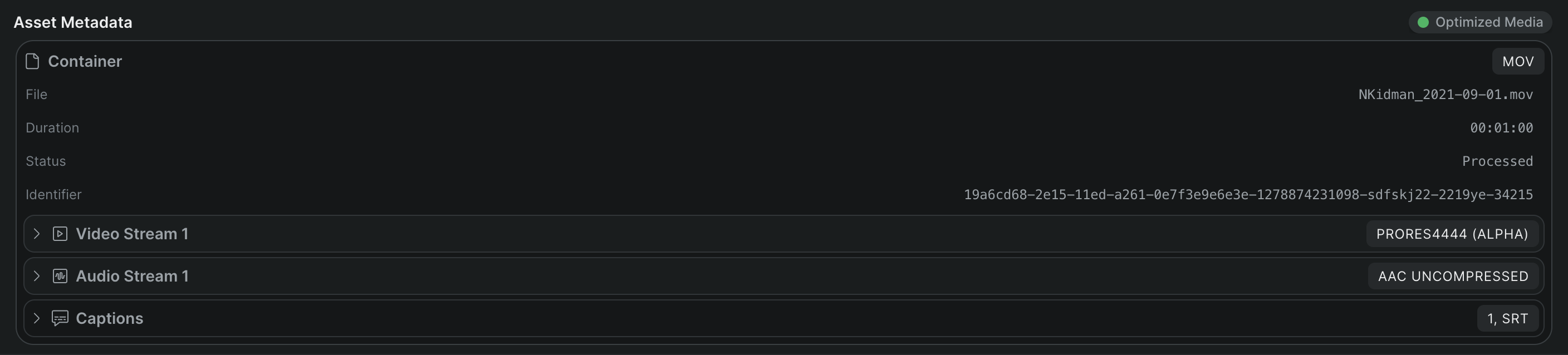
Asset Metadata#
The Asset Metadata module reports the technical details Sequence read from the source file, so it's the place to confirm exactly what you uploaded. Values are read-only; click a value to copy it. For what these formats mean for editing and playback, see Media formats.
A rendition status chip in the module header shows whether Sequence has finished making an optimized version of the media — for example Available, Processing, or Pending. If the file has a variable frame rate, a VFR Warning appears above the details, recommending you transcode to a constant frame rate for best performance.
The details are grouped into expandable sections. Click a stream heading to expand or collapse it.
Container#
- File — The original file name Sequence received.
- Name — The item's display name, shown when it differs from the file name.
- Created — When the source file was created.
- Duration — The item's running time.
- File Size — The size of the source file.
- Status — The processing status of the source media.
- Identifier — The item's internal identifier.
A format chip beside the Container heading shows the container format (for example MOV or MP4).
Video Stream#
One section appears per video stream, with a codec chip in its heading.
- Resolution — The stream's frame size in pixels, as width × height.
- Frame Rate — The stream's frame rate.
- Interlaced — Yes or No, shown when Sequence can determine it.
- Rotation — The stream's rotation in degrees, shown when it isn't zero.
Audio Stream#
One section appears per audio stream, with a codec chip in its heading.
- Sample Rate — The stream's sample rate.
- Output Channels — The number of output channels.
- Configuration — The channel configuration (for example stereo or 5.1).
Captions#
Appears when the file carries caption tracks, with a chip showing how many and their format.
- Format — The format of each caption track.