The Sequence editor is where you build a timeline. By default it lays out three panels side by side — the browser, the preview, and the inspector — above a full-width timeline. A top bar runs across the top. This page names each region and points you to its deep dive.
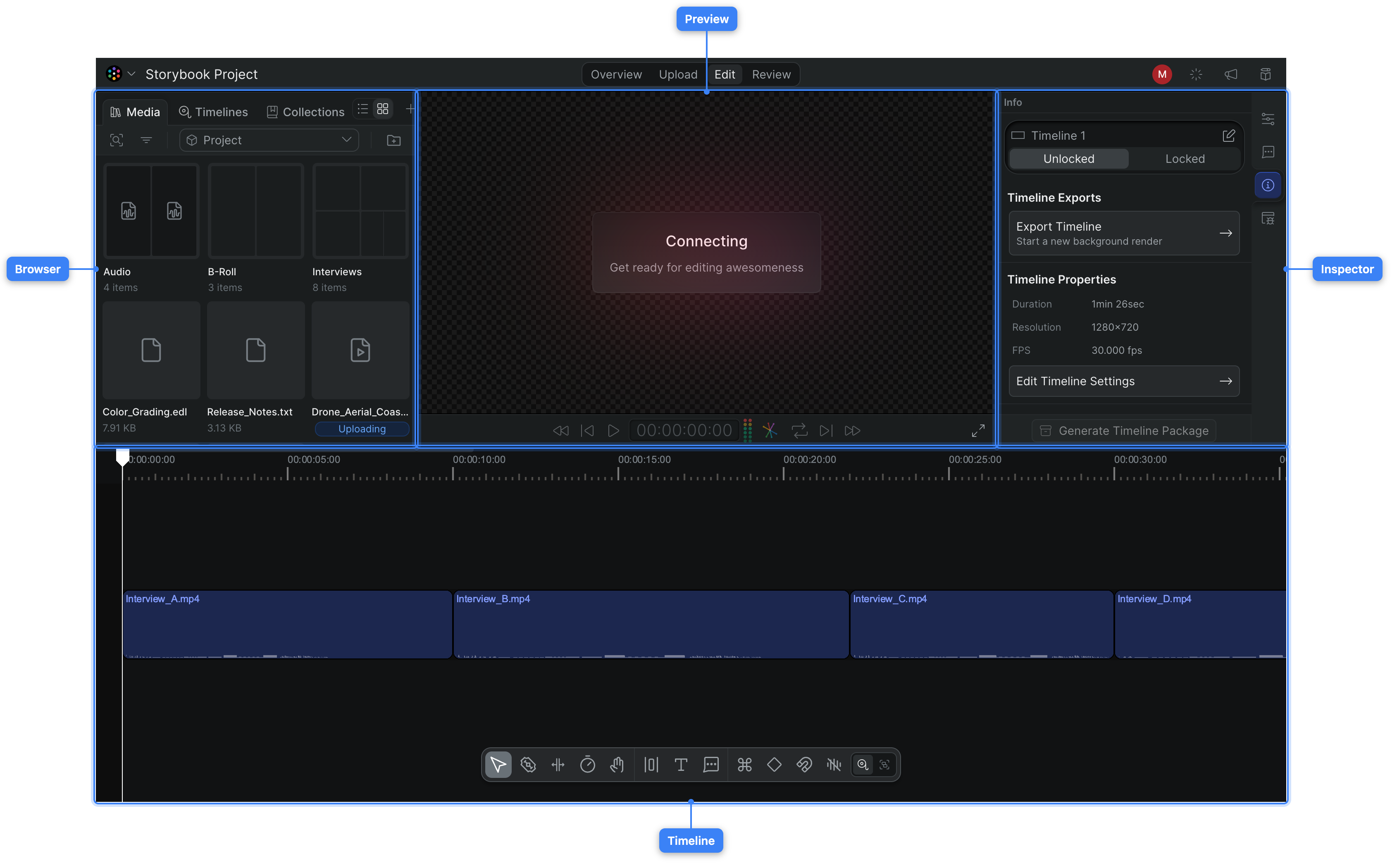
Panel Layout#
Read the editor left to right, top to bottom:
- Browser — The panel on the left, where your project's media lives. Its tabs are Media, Timelines, and Collections. Drag a clip from here into the timeline to edit with it. See Organizing files.
- Preview — The panel in the middle, where the frame under the playhead plays back. Use it to scrub, play, and watch your edit. See Preview and playback.
- Inspector Panel — The panel on the right, where you view and adjust the properties of whatever you've selected — a clip, the timeline, or a library item. See Inspector Panel.
- Timeline — The full-width area below the three panels, where you arrange, trim, and stack clips into an edit. See Timeline and tools.
Drag the divider between any two panels to resize them. Sequence remembers your layout per project, so the editor opens the way you left it each time you return.
Top Bar and Reel Menu#
The top bar runs across the top of every project. On the left is the Reel menu — the colorful Sequence logo. Click it to open a dropdown for app-wide actions and navigation. Next to it, the top bar shows the project's title and its parent project; on the right are the help and collaborator controls.
The Reel menu is your command hub. In the editor it includes:
- Command Palette — Opens a searchable list of every command (or press Cmd-K — Windows: Ctrl-K). See Command palette.
- Show Sidebar / Hide Sidebar — Toggles the workspace sidebar (or press [).
- Show Snippy Panel / Hide Snippy Panel — Toggles Snippy, Sequence's AI assistant (or press ]). See Intro to Snippy.
- Toggle Timeline, Toggle Audio Meters, and Toggle Visual Scopes — Show or hide those panels (see below).
- Go to Workspace and Workspace Settings — Navigate out of the project.
- Help & Docs — Opens this documentation.
To switch between a project's apps — Overview, Upload, Edit, and Review — use the app switcher in the top bar.
Show or hide panels#
Beyond the three default panels, the editor has a few optional panels you toggle on when you need them. Each has a keyboard shortcut or a Reel-menu command:
- Sidebar — Press [ to show or hide the workspace sidebar.
- Snippy — Press ] to show or hide the AI assistant panel.
- Keyframe Panel — Press Shift-K to show or hide the keyframe panel below the timeline, where you shape animation.
- Audio meters — Open the Reel menu and choose Toggle Audio Meters to watch output levels while you play.
- Video scopes — Open the Reel menu and choose Toggle Visual Scopes to check color and exposure.
Tip
The command palette (Cmd-K — Windows: Ctrl-K) can run any of these toggles too — type the panel name and select the command.